Illustration of a smartphone with multiple chat bubbles from different users, representing team communication and Slack app integrations.

The Best Slack Apps and Integrations to Supercharge Your Team

By Sammi Cox

Slack launched in 2013 as an internal tool for a gaming company and became a standalone platform in 2014. By 2026, it has grown into a “digital headquarters” with over 2,600 apps and AI agents that summarize conversations, generate content, and automate tasks. Teams using Slack only for chat miss out on centralized updates, project tracking, and workflow automation.

This article covers essential integrations: project management tools, productivity bots, communication apps, AI summarizers, and engagement tools. We also explore how platforms like Kumospace complement Slack by turning quick chats into live coworking sessions.

What Is a Slack App?

A Slack app is an add-on or integration that extends Slack’s core chat functionality with actions, notifications, and automations. Think of it as a bridge between Slack and the other apps your team relies on daily. Instead of switching between browser tabs, you can access critical information and take action directly from Slack conversations.

Slack apps connect external tools like Google Drive, Asana, or GitHub to specific Slack channels and direct message threads. When someone shares a Google Doc, you see a rich preview. When a pull request gets merged, your #engineering channel gets notified. When a customer submits a support ticket, it can automatically appear in your #support channel.

Not all Slack apps work the same way. Some are simple notification bots that post alerts. Others are interactive apps with buttons, forms, and modals that let you take action without switching tabs. The newest category, AI “agents,” can understand context, answer questions, and perform complex tasks based on natural language commands. For example, you might convert Slack messages into Trello cards, auto-post customer support tickets to a tracking channel, or click a link to launch a Kumospace room directly from a channel for an impromptu video meeting.

Thousands of apps are available in the Slack App Directory, ranging from free to paid options. Teams can also build custom integrations using Slack’s APIs, Bolt SDKs, and the Slack CLI for workflows that don’t exist out of the box.

How to Add and Manage Apps in Your Slack Workspace

Adding apps to your Slack workspace takes about two minutes, assuming you have the right permissions. Here’s how it works:

Step 1: Open the Apps section. In Slack’s left sidebar, click “Apps” (or the “+” icon next to it if you’re adding a new one). You can also visit the Slack App Directory directly at slack.com/apps.

Step 2: Search and install. Browse by category or search for a specific tool. Click “Add to Slack” and you’ll see a permission prompt explaining what data the app can access.

Step 3: Authorize and configure. Some apps require you to connect a personal account (like Google Calendar syncing your schedule). Others need admin approval before installation; check with your workspace admin if you see a “Request” button instead of “Add.”

Step 4: Set up notifications and channels. Most apps let you choose which Slack channels receive notifications and customize what triggers alerts. Take a few minutes here to avoid flooding channels with noise.

Pro tip: Test new apps in a private channel or pilot group before rolling them out to your entire team. This helps you fine-tune app settings and catch any issues early.

Avoiding app overload is critical. Schedule regular audits, monthly or quarterly, to review connected apps in your workspace. Go to Settings & Administration → Manage apps to see everything installed. Disable noisy notifications, uninstall apps nobody uses, and consolidate tools that overlap in functionality.

Keep in mind that some apps, including many AI agents, require paid plans either on Slack’s side or through separate subscriptions. Others offer free tiers with limitations on features or usage.

The Best Slack Apps at a Glance

With over 2,500 apps spanning project management, productivity, automation, video collaboration, engagement, and fun, finding the right tools can feel overwhelming. The good news: you don’t need dozens of integrations. Most teams thrive with 5-10 well-chosen apps that fit their workflow.

Here’s a quick overview of standout apps across categories:

  • Trello – Visual Kanban boards for task management
  • Asana – Cross-functional project tracking with due dates and dependencies
  • ClickUp – All-in-one work OS with docs, goals, and sprints
  • Google Calendar – Daily agendas, meeting reminders, and status syncing
  • Google Drive – File storage alerts and rich document previews
  • Zoom – Launch video meetings from any channel with slash commands
  • Calendly – Automated meeting scheduling with external parties
  • Zapier – No-code automation connecting Slack with thousands of other apps
  • Geekbot – Async standups and check-ins without live meetings
  • Polly – Advanced surveys, polls, and engagement analytics
  • Donut – Random teammate pairings for virtual coffees
  • GIPHY – Animated GIFs to celebrate wins and lighten the mood
  • Kumospace – Virtual office platform for instant “jump into a room” collaboration

Each category section below covers 3-5 apps with concrete use cases and pricing notes to help you decide what fits your team.

The Best Slack Apps for Project Management

Project management apps eliminate the gap between where conversations happen (Slack) and where tasks get tracked (your PM tool). Instead of copying and pasting updates between systems, these Slack integrations keep task statuses, deadlines, and ownership visible directly in your channels.

The “best” project management tool is usually the one your team already uses. If your product squad lives in Trello, integrate Trello. If your marketing team swears by Asana, connect that. The goal is not to add another tool but to bring your existing tool into Slack so you can track progress without opening another browser tab.

Common workflows include turning messages into actionable tasks, receiving status change alerts in a specific Slack channel, and posting sprint summaries automatically. For remote teams especially, these integrations reduce context switching between Slack and project management tools, keeping everyone on the same page without constant pings asking “what’s the status?”

Trello

Trello uses a board-list-card model that is intuitive for visual thinkers. The Slack app mirrors this structure through interactive messages, letting you manage boards without leaving Slack.

  • Creating cards from conversations: When someone shares an idea or bug report in a channel, use the message shortcut (More actions → Add card to Trello) to convert Slack messages directly into Trello cards. The original message becomes the card description, preserving context.
  • Channel notifications: Link a Trello board to your project channel and receive notifications when cards move to “Done,” get assigned, or have comments added. This keeps the whole team informed without requiring everyone to check Trello manually.
  • Rich previews: When you paste a Trello card link, Slack shows a preview with the card title, list name, and assigned members. No need to click through to understand what is being discussed.

Trello works especially well for marketing, content, and product squads that prefer visual Kanban boards over lists and timelines.


Asana

The Asana Slack app brings task creation, assignments, and due dates directly into channel conversations. This integration is useful for cross-functional projects where marketing, product, and engineering teams need visibility into each other’s work.

  • Creating tasks from Slack: Highlight any message and create an Asana task without leaving Slack. Assign an owner, set due dates, and link it to a project, all through Slack’s interface.
  • Automatic project updates: Link an Asana project to a Slack channel, like #product-launch, to receive automatic notifications for new tasks, status changes, and comments. Team members stay informed without checking Asana constantly.
  • Example workflow: A customer reports a bug in #support. With two clicks, you create an Asana task assigned to an engineer with a due date, and the #engineering channel gets notified. The original Slack thread links back to the task for context.

Paid Asana tiers add AI-powered summaries and workload views, which still surface relevant Slack notifications for teams managing complex projects.


ClickUp

ClickUp positions itself as an all-in-one work OS, combining tasks, docs, goals, and sprints in one platform. The Slack integration brings core functionality into your channels.

  • Task creation with context: Convert any Slack message into a ClickUp task with attachments preserved. The original message, any files shared, and thread context transfer over automatically.
  • Status updates in channels: Change task statuses directly from Slack notifications. When someone moves a task to “In Review,” the relevant channel can receive an alert.
  • Rich link previews: Paste a ClickUp task URL and see the status, assignee, and due date inline. Teams working in ClickUp docs and sprints can discuss tasks in Slack while keeping the source of truth in ClickUp.

The Slack integration works on both free and paid ClickUp plans, though some advanced features require a subscription.


Workast

Workast takes a different approach. It is a Slack-first task and checklist tool designed primarily for teams who live in Slack. If you do not need a full-featured PM tool but want better task tracking, Workast fills that gap.

  • Quick to-do creation: Use slash commands like /workast add Review Q3 budget to create tasks instantly. View your personal to-do lists in the app home tab within Slack.
  • Channel-based task management: Assign tasks to teammates, set due dates, and track completion directly in Slack messages. When tasks are completed, everyone in the channel sees the update.
  • Simplicity over complexity: Workast works for ad hoc checklists, simple sprints, and teams that find tools like Asana or Jira overwhelming. It does not replace enterprise PM software, but it is suitable for smaller teams or specific use cases like event planning or onboarding checklists.

Advanced reports and some features sit behind paid plans, but the free tier covers basic task management for most small teams.

The Best Slack Bots for Productivity and Automation

Productivity bots act as personal assistants that manage calendars, files, approvals, and cross-app automation without requiring you to switch between tools. The value proposition is simple: automate repetitive tasks so humans can focus on work that matters.

These bots handle auto-updated statuses, such as showing “In a meeting” when your calendar says so, scheduled reminders, and automated notifications that would otherwise require manual effort. When combined with tools like Zapier and Slack’s native workflow builder, you can create advanced no-code flows that trigger actions across your entire tech stack.

A word of caution: poorly configured automation creates more noise than value. Be intentional about which channels receive notifications and how often alerts fire.

Google Calendar

Google Calendar transforms how you manage your schedule without switching to a browser tab.

  • Daily agenda in Slack: Each morning, receive notifications showing your upcoming meetings. See what’s on your calendar at a glance from your Slack sidebar.
  • One-click actions: RSVP to meeting invites, join Google Meet or Zoom calls, and see who else is attending, all from Slack notifications.
  • Automatic status updates: When you’re in a meeting, your slack status automatically changes to “In a meeting 📅” so colleagues know you’re unavailable. This is especially valuable for distributed teams across time zones who need clear availability signals.

Each user connects their own Google account securely during setup, ensuring privacy and proper calendar access.


Google Drive

The Google Calendar Slack app transforms how you manage your schedule without switching to a browser tab.

  • Daily agenda in Slack: Each morning, receive notifications showing your upcoming meetings. See what is on your calendar at a glance from your Slack sidebar.
  • One-click actions: RSVP to meeting invites, join Google Meet or Zoom calls, and see who else is attending, all from Slack notifications.
  • Automatic status updates: When you are in a meeting, your Slack status automatically changes to “In a meeting 📅” so colleagues know you are unavailable. This is especially valuable for distributed teams across time zones who need clear availability signals.

Each user connects their own Google account securely during setup, ensuring privacy and proper calendar access.


Zapier

Zapier is a no-code automation platform that connects Slack with thousands of SaaS tools, from CRMs to email marketing to file storage and beyond.

Typical automations (called “Zaps”):

  • Post to #sales when a new lead is created in HubSpot
  • DM the support lead when a high-priority Zendesk ticket appears
  • Log specific slack messages into a CRM or spreadsheet
  • Create calendar events when certain keywords appear in channels

Zapier works bidirectionally: it can send messages into Slack and use Slack actions (like emoji reactions) as triggers for external workflows.

Getting started: Begin with 1-2 high-impact automations before scaling. A free plan covers limited tasks, while paid plans unlock higher volumes, multi-step Zaps, and advanced features.


Clockwise

Clockwise syncs with your calendar to protect focus time and automate availability signals in Slack.

Automatic Do Not Disturb: During meetings or blocked focus time, Clockwise sets Slack’s DND mode so you’re not interrupted by non-urgent pings.

Smart status updates: Your Slack status updates automatically to messages like “Focusing until 3:00 PM” or “In a meeting,” helping colleagues time their messages appropriately.

AI-assisted scheduling: Clockwise finds optimal times for team meetings based on everyone’s calendars, minimizing context switching and fragmented schedules. For engineering teams, this means creating protected “focus blocks” that Slack respects via DND.

Setup requires calendar integration and sometimes workspace-level permissions depending on your organization’s policies.


Approveit

Approveit streamlines approval workflows by bringing them into Slack.

Approve from anywhere: When a request needs your sign-off, you receive a Slack message with “Approve” and “Reject” buttons. No need to log into a separate portal or dig through emails.

Routing and delegation: Configure rules for who approves what, set up automatic delegation when approvers are on vacation, and maintain clear audit trails for finance or HR compliance.

Example: A manager approves a vendor invoice from a mobile Slack notification during a commute instead of waiting to access email on their laptop. The approval logs to the system automatically.

For remote and hybrid organizations, Approveit can save time and significantly shorten approval cycles that would otherwise drag on for days.

The Best Slack Apps for Communication and Meetings

Chat handles most daily communication, but teams also need video calls, async updates, and efficient scheduling. These apps help you move fluidly between asynchronous messaging and synchronous face time without the overhead of constant meeting scheduling.

Combining Slack with a virtual office like Kumospace takes this further, offering a more immersive environment for daily collaboration. Instead of scheduling a call, you just “walk over” to someone’s virtual desk.


Zoom

Zoom remains one of the most popular video meeting platforms, and its Slack integration makes launching calls effortless.

  • Starting meetings: Type /zoom in any channel or DM to instantly create a Zoom meeting and share the join link. No need to open Zoom separately, find your personal meeting link, and paste it.
  • Meeting summaries: Configure the integration to post meeting details and summaries back to the relevant channel after calls end. This keeps discussions documented where they belong.
  • Use cases: Quick incident calls, daily standups, client meetings, and impromptu brainstorms. Workspace admins can set Zoom as the default meeting app if your organization is standardized on it.

Best practice: Clearly name meetings when creating them, and post a quick summary back into the channel afterward so anyone who missed it can catch up.


Loom

Loom enables asynchronous video messages and screen recordings that embed directly in Slack which is perfect for distributed teams across time zones who can’t always join live video meetings.

  • When to use Loom: Walkthroughs of new features, code reviews, stakeholder updates, or any explanation that would take ten messages to type but two minutes to show.
  • Rich previews: Paste a Loom link and Slack shows the title, thumbnail, and duration automatically. Recipients know exactly what they’re clicking into.
  • Benefits for async work: A designer in Berlin can record a prototype walkthrough for an engineer in San Francisco who watches it four hours later. No scheduling required, no time zone gymnastics.

Viewers need Loom permissions as configured by your team, so ensure access controls are set appropriately.


Calendly

Calendly automates the back-and-forth of meeting scheduling, especially with external parties like clients, candidates, or partners.

  • Slack notifications: Get notified in a chosen channel or DM when meetings are booked, rescheduled, or canceled. Sales reps can set up a #demos channel that shows all new prospect bookings automatically.
  • Daily schedule view: Access your Calendly schedule from the app home within Slack to see what’s coming up without opening another tab.
  • Example: A customer success team shares their Calendly links with clients. Each new booking posts to #customer-calls so the team knows who’s meeting whom and can prepare accordingly.

This reduces email ping-pong while keeping the entire team aware of pipeline activity and upcoming commitments.


Geekbot

Geekbot replaces routine status meetings with async standups, retrospectives, and check-ins that happen inside Slack.

How it works: Geekbot pings team members at set times (respecting time zones), asks customizable questions, and collects responses. Summaries post to a designated channel like #standup.

Example questions:

  • What did you work on yesterday?
  • What are you working on today?
  • Any blockers?

Analytics and history: Geekbot tracks patterns over time, giving managers visibility without requiring everyone to attend a live meeting.

For remote teams, this can replace many routine video calls while keeping project updates transparent and documented.


Kumospace

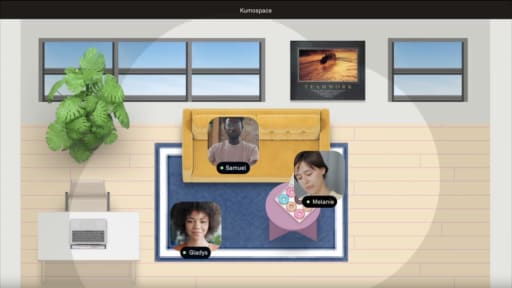
Kumospace is a virtual office platform that integrates with Slack to give teams a persistent, spatial workspace where they can collaborate in real time.

The core use case: From a channel like #engineering, teammates click a shared Kumospace link to instantly gather in a dedicated virtual room. It’s the digital equivalent of walking over to someone’s desk.

Channel-to-room mapping: Teams can map slack channels to specific Kumospace rooms (e.g., #design links to the Design Studio). This creates a natural flow from text-based async conversation to live collaboration when needed.

Benefits over traditional video links:

  • Sense of presence as you can see who’s in which room
  • Informal drop-ins without scheduling
  • Visual cues that mimic a physical office
  • Screen sharing and whiteboarding built in

For remote teams, combining Slack messaging with a Kumospace office helps recreate hallway chats, ad hoc whiteboarding sessions, and team rituals that make work feel more human.

The Best AI Slack Bots and Agents

AI agents in Slack can summarize threads, answer complex questions, generate content, and analyze data on demand. In 2026, Slack positions itself as an “AI work platform,” an agentic operating system where people, apps, data, and AI work together.

Instead of switching to ChatGPT in a browser tab, teams now invoke AI directly from Slack to draft responses, research topics, or get up to speed on a 200-message thread in seconds.

Key use cases:

  • Meeting recaps and action item extraction
  • Research and competitive analysis
  • Drafting documents or emails
  • Triaging long discussion channels

Privacy considerations: Admins should configure which channels AI agents can access, review data handling policies, and ensure compliance with internal security requirements. Not every conversation should be accessible to third-party AI tools.


Perplexity

Perplexity’s Slack app functions as an AI research assistant that answers complex queries using both web sources and internal context.

  • How to use it: Invoke Perplexity via slash command in any channel to ask questions. It can summarize long threads, compare options, draft plans, or explain technical concepts.
  • Follow-up conversations: Ask follow-up questions in the same thread to refine answers.
  • Example: Your #product-strategy channel has a 200-message debate about pricing. Invoke Perplexity to summarize the discussion into key arguments, concerns, and proposed next steps.

Admins can limit which channels Perplexity can access to maintain data governance and prevent sensitive information from being processed externally.


Adobe Express

Adobe Express brings design and content creation into Slack with AI-powered features that help non-designers create professional graphics.

Slack integration capabilities: Marketers and designers share drafts, request quick edits, and generate social media posts directly from a channel conversation. Brand kits and templates ensure visuals stay on-brand.

This integration benefits customer support teams, marketing squads, and anyone who needs simple graphics without opening heavy desktop tools like Photoshop.

Apps for Engagement, Culture, and Team Building

Remote teams miss the casual interactions that happen naturally in offices, such as coffee chats, hallway conversations, and spontaneous celebrations. Engagement apps weave recognition, feedback, and social interactions into daily Slack usage, enabling teams to build culture even when distributed.

These tools range from lightweight options like simple poll creation to comprehensive survey and recognition platforms. Used thoughtfully, they strengthen team engagement and make channels feel more human.

Pitfall to avoid: Too many engagement bots in too many channels creates clutter and fatigue. Configure them for specific channels, like #watercooler or #team-updates.


Simple Poll

Simple Poll does exactly what its name suggests: quick polling in channels using slash commands.

Use cases:

  • Picking a meeting time
  • Voting on feature names
  • Choosing a team event or lunch spot
  • Gathering quick feedback on ideas

Options: Choose between anonymous and non-anonymous votes, single-choice or multiple-choice questions. Free plans cover basic polls, while paid tiers unlock advanced features.

Simple Poll encourages inclusive decision-making by giving everyone a voice, especially quieter team members who might not speak up in live meetings.


Polly

Polly is a more advanced survey and polling app with analytics, templates, and scheduled check-ins for ongoing measurement.

Use cases:

  • Employee pulse surveys
  • Onboarding feedback
  • Post-mortem retrospectives
  • Training quizzes and knowledge checks

Results and analytics: View dashboards showing response trends over time. Summaries can post automatically to leadership channels so executives see team sentiment without manual reporting.

Anonymity and segmentation: Configure surveys to be anonymous and segment results by team, location, or other criteria.

Polly is well-suited for HR, People Ops, and managers who need engagement metrics beyond one-off polls.


Donut

Donut is a pairing bot that connects teammates for virtual coffees, peer mentoring, or cross-team introductions.

How it works: Add people to a Donut channel (like #random-coffee). The bot randomly pairs members on a set cadence and DMs them intros with prompts and suggested meeting times.

Integration with calendars: Donut can suggest times based on Google Calendar availability, making it easy to actually schedule the connection.

Example: New hires in #newcomers get periodic Donut matches with experienced colleagues. Over their first few months, they meet people across the organization without needing to navigate the company directory alone.

Donut breaks down silos and supports remote culture by facilitating relationships that wouldn’t form organically in a distributed environment.


Slackbot

Slackbot is Slack’s built-in assistant, a native feature worth configuring thoughtfully.

Custom responses: Set triggers for keywords that prompt automatic replies. When someone types “#guidelines,” Slackbot can post a link to your code of conduct. When someone asks “wifi password?” Slackbot can respond with the answer.

Reminders: Use /remind to set personal or channel reminders. Slackbot will ping you or the channel at the specified time.

Example: A team configures Slackbot to remind #engineering about the weekly retro every Friday at 2 PM, ensuring the ritual doesn’t slip.

Use Slackbot responses to reinforce company values, DEI guidelines, or onboarding resources in a way that feels helpful rather than preachy.

Fun Slack Apps That Keep Morale High

Fun apps aren’t frivolous; they help teams celebrate wins, build rapport, and reduce the isolation of remote work. Light-hearted interactions can reduce burnout and make slack channels feel more human.

Configure these apps for appropriate channels (like #fun, #celebrations, or #watercooler) to avoid cluttering serious work discussions. And align them with your company culture; what works for a startup might not fit a law firm.

BirthdayBot

BirthdayBot collects birthdays and optionally work anniversaries, then posts celebratory messages in chosen channels on the special day.

Customization: Configure the message text, posting time, and how many days in advance managers receive reminders. Personal touches matter as a generic “Happy Birthday” lands differently than a message tailored to your team’s voice.

Privacy considerations: Make birthday collection opt-in and respect regional norms. Not everyone wants their age or birthday publicized.

Making it meaningful: Pair BirthdayBot with small perks to make celebrations feel genuine rather than automated.


GIPHY

GIPHY is the go-to app for posting animated GIFs via slash commands. Type /giphy celebration and browse through options to express exactly the right reaction.

Content controls: Admins can set content rating filters to keep GIFs workplace-appropriate. You don’t want an unfortunate search result appearing in #all-company.

When to use GIFs:

  • Celebrating big launches
  • Reacting to bug fixes finally merged
  • Friday wins and weekend vibes
  • Lightening tense moments with humor

When to skip GIFs: Incident response channels, executive updates, and serious discussions. Save the fun for social channels where it belongs.


Build Your Own Slack App or Bot

Sometimes the app you need doesn’t exist. When your workflows are unique, your systems are proprietary, or you need highly specific automations, building a custom Slack app makes sense.

Key tools for custom development:

  • Web API – Send messages, manage channels, access user information
  • Events API – Listen for Slack events (messages, reactions, channel joins) and trigger actions
  • Block Kit – UI framework for building interactive messages with buttons, menus, and forms
  • Bolt SDKs – Official frameworks for JavaScript, Python, and Java development
  • Slack CLI – Scaffold new apps with TypeScript and deploy to Slack’s infrastructure

Modern capabilities: Custom apps can use canvases, modals, and app home surfaces for richer interfaces beyond simple messages. Apps can run on Slack’s infrastructure (ROSI) for simplified hosting and compliance.

Before building: Prototype with no-code tools like Zapier or the workflow builder to validate the use case. Building custom apps requires development resources; make sure the value justifies the investment.

Custom integrations can even trigger real-time gatherings in platforms like Kumospace when certain Slack events occur. Imagine an app that automatically opens a Kumospace room when a high-priority incident is declared, gathering the on-call team instantly.

How to Choose the Right Slack Apps for Your Team

With thousands of apps available, selection paralysis is real. Here’s a framework for choosing wisely:

Getting started:

  1. Start with 1-2 apps per category (PM, calendar, files, meetings, engagement)
  2. Pilot with a single team or project before workspace-wide rollout
  3. Gather feedback after 2-4 weeks and iterate

Set app guidelines:

  • Where do notifications go? (Specific channels, not #general)
  • Who owns configuration and troubleshooting?
  • When do you uninstall unused tools?

Data and compliance: For AI and CRM-related apps, review how they handle message content. Some tools process conversation data in ways that may conflict with privacy policies or industry regulations.

Conclusion

Slack apps turn Slack into a central workspace. Teams can manage projects, access files, join meetings, run automations, and build culture without switching tabs.

Focus on apps your team actually uses and audit regularly to remove unused integrations and reduce noise.

For distributed teams, combining Slack with platforms like Kumospace provides async efficiency and real-time presence.

Next step: Pick two to three high-impact apps, pilot with a team, and measure whether they save time and reduce tab-switching.

Frequently Asked Questions

Transform the way your team works from anywhere.

A virtual office in Kumospace lets teams thrive together by doing their best work no matter where they are geographically.

Headshot for Sammi Cox
Sammi Cox

Sammi Cox is a content marketing manager with a background in SEO and a degree in Journalism from Cal State Long Beach. She’s passionate about creating content that connects and ranks. Based in San Diego, she loves hiking, beach days, and yoga.

Transform the way your team works.